Virtual Try-On
AI Virtual Try-On in VTRY: Add a Person Once, Create Many Looks
Add a Person once in VTRY, reuse saved references across shoots, choose prompt presets, and add garments by upload, URL, search, or AI extraction.
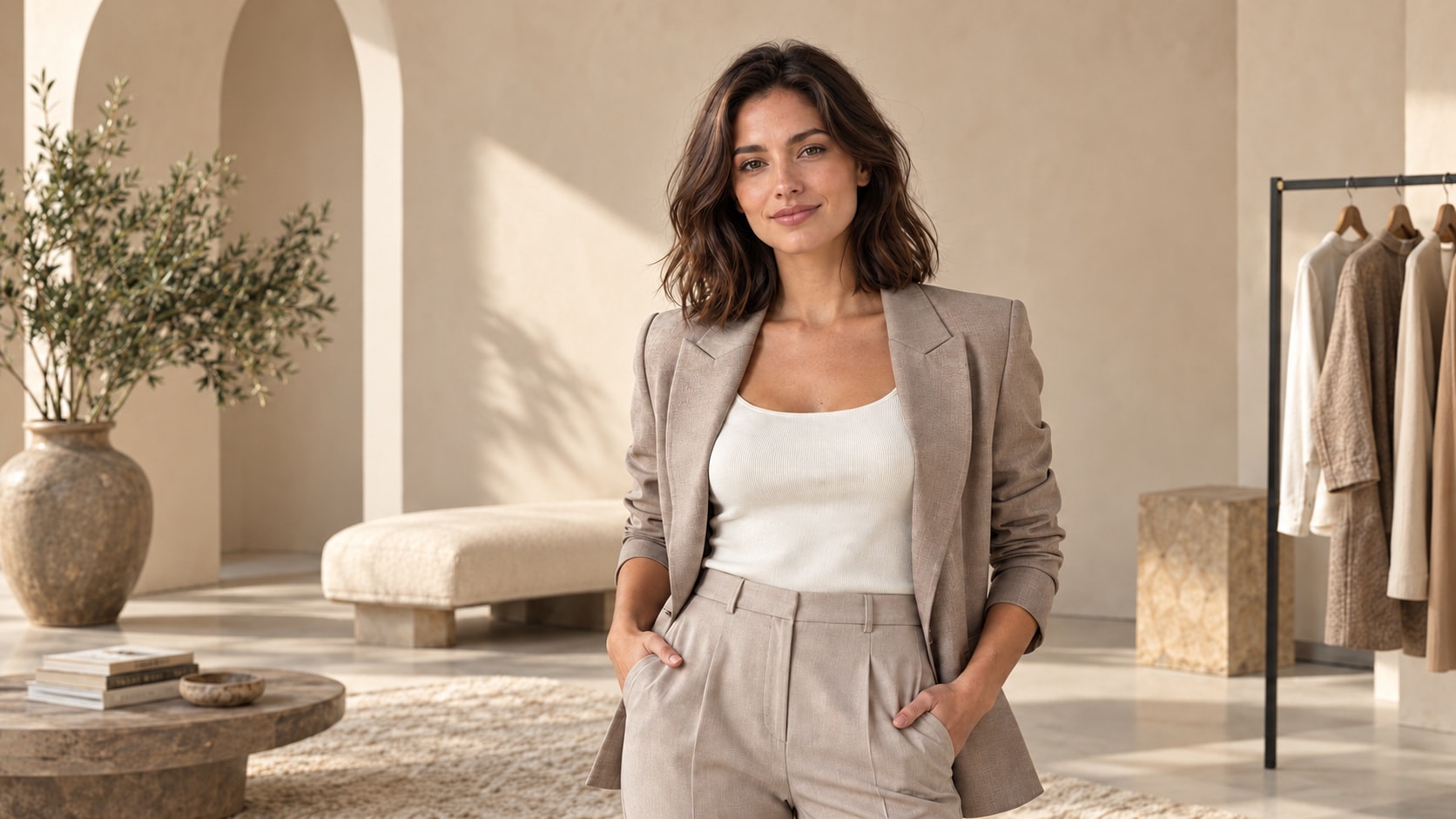
A fashion shoot involves several choices: the person, the outfit, the scene, and the camera view. Repeating the same setup for every new image makes a collection harder to manage. VTRY organizes these choices into reusable people, a garment library, and ready-made prompt presets, so you can build the next look from references you have already added.
Add a Person once, select that saved person for later shoots, and vary the clothes or scene without writing their appearance again. This guide shows how to combine those tools for fashion ecommerce content, while reviewing each generated result for identity and product accuracy.
Add a Person once and reuse them across shoots
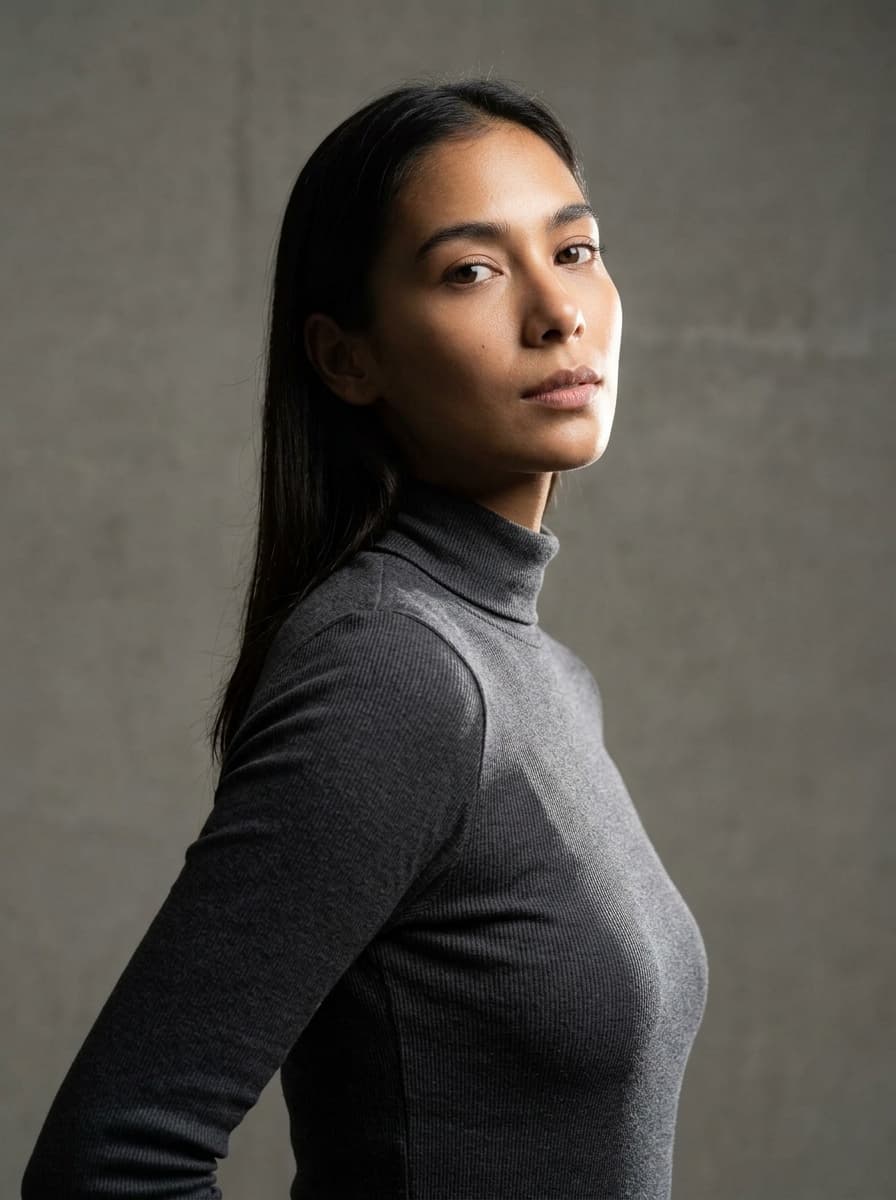
Open New person and give the person a recognizable tag. Add clear reference photos through an upload, camera capture, or direct image URL, then complete the guided setup. Use images you have permission to process, with even lighting and visible facial features. Your saved person and their references become available for future selections.
For the next shoot, select that existing person instead of creating another entry or describing their face, hair, and appearance from scratch. Your prompt can focus on the scene, pose, and styling. Reusing references gives you a consistent starting point; it does not guarantee identical identity in every output, so compare the face and proportions before approving an image.
Choose a ready-made scene from the prompt gallery
You do not need to write a complete photography prompt for every shoot. VTRY has a gallery of ready-made prompts covering studio portraits, street scenes, editorial looks, and other settings. Select a preset as a starting direction, then adapt the instructions if your product needs a clearer view or a different crop.
- Minimal White Studio: start with a simple studio direction for reviewing an outfit.
- Modern Gray Studio: explore a neutral catalog-style setting across a collection.
- Urban Café Street: try a lifestyle direction for a casual outfit or social post.
- Magazine Editorial: explore a more editorial direction for a campaign concept.
These are existing gallery presets. Choose the scene to match the placement: a product page needs readable garment details, while a collection banner may need more atmosphere. Keep the same saved person as you compare directions.
Add clothes by upload, URL, search, or AI extraction
The Add clothes dialog lets you build your private garment library from different sources. Pick the method that matches the image you have, then check the product and colorway before adding it.
- Upload: choose a garment photo from your device.
- Direct image URL: paste a link to the product image itself.
- Product or page URL: paste the page address and select a suitable image from the returned options.
- Keyword search: enter a clothing search term and choose a relevant reference image.
- Use as is or Extract: keep an appropriate clean reference directly, or use AI extraction to isolate garments from the selected source.
If VTRY detects a face in the garment source, it asks you to use Extract (AI) or cancel rather than add that image as is. Review extracted garments too: check color, edges, fastenings, and prints. Search and URL imports depend on the source being accessible, and every image still needs appropriate usage rights.
Reuse one Person for a studio look and a lifestyle look
- Select your saved person, then choose a jacket and trousers from the garment library.
- Choose a studio preset and output settings that keep the full outfit visible.
- Generate a draft and compare the person and garments with their references.
- Keep that person and outfit selected, switch to a lifestyle preset, and generate a second direction.
- Review both results before choosing which image suits your product page or campaign.
To refine the studio direction, try: “Full-body photograph of the selected person in the selected outfit, neutral light background, relaxed standing pose, soft even lighting. Preserve the jacket color, length, fastenings, and pockets. Show the entire outfit.” The saved person supplies the visual reference; the prompt describes this shoot.
For another product, keep the person and approved scene, then change the selected garment. For another campaign direction, keep the person and outfit, then change the preset. Changing one variable at a time makes comparisons easier.
Review product fidelity before publishing
Review the garment before judging the image as a whole. Generative imagery can introduce or alter details, especially around small graphics, layered edges, fine textures, and areas hidden in the reference. The most polished result may still be the wrong representation of your product.
- Compare color, pattern placement, logo spelling, and print scale with the source.
- Check garment length, neckline, sleeves, seams, closures, pockets, and accessories.
- Inspect hands, face, body proportions, and the boundary between layered garments.
- Reject invented product details and results that imply unsupported sizing or body-shaping claims.
Use a specific edit instruction for a wrong detail, then review the whole revision again. For repeated errors, improve the source or simplify the composition. A virtual try-on image does not measure the wearer or predict physical fit; retain product measurements and size guidance.
Publish a small, reviewed pilot
Keep original packshots and close-up product details in the image set. Place approved AI styling images where they add context, describe their purpose clearly, and check the requirements of each storefront or advertising channel. Keep a record of the source garment, person reference, prompt, and approved final file so your team can reproduce the work.
Start with a small image set and record which person, garments, and presets worked. Track review time, rejected outputs, and customer questions before expanding. Reusable setup choices are helpful when they produce relevant, reviewed images for your actual products.
Frequently asked questions
Do I need to redefine the Person for every new shoot?
Select the saved person to reuse their reference images. You can focus the new prompt on the scene and outfit instead of describing their appearance again. Still review identity in each generated result.
Do I have to write every prompt myself?
No. Choose a ready-made prompt from the gallery and use it as a starting point. You can adjust it when you need different framing, lighting, or product visibility.
Can I add clothes from a product page or search term?
The URL / keyword option supports page URLs and keyword search, alongside direct image links. Select an appropriate result, use it directly when suitable or extract garments, and check its accuracy and usage rights.