how to headshot
How to Headshot at Home: Lighting, Posing and Export Specs
Learn how to headshot with a phone or camera: frame, light and pose the shot, make safe edits, and export the right sizes for LinkedIn and other profiles.
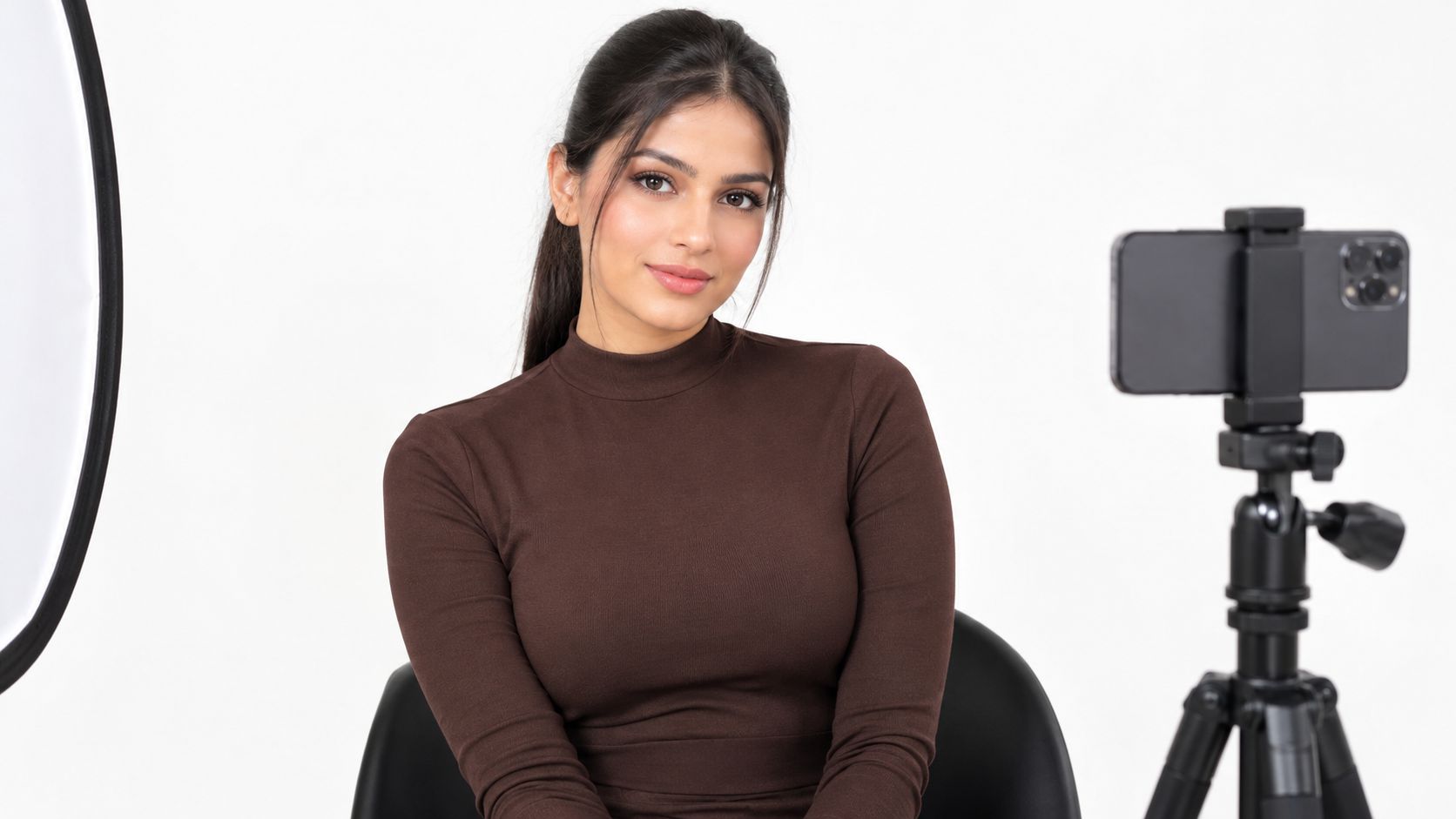
Profiles with a clear photo tend to attract more attention on professional networks, though platform figures are correlations rather than guarantees. A headshot still has to do its job in a tiny thumbnail: keep your face clear, familiar, and easy to recognize without editing you into someone else.
A good home headshot doesn't require a studio. It requires control over camera angle, light, background, and crop, plus one honest check at the end: would someone who knows you recognize you in ordinary light? I treat recognizability as the limit on every adjustment, and alt text where the platform allows it makes the photo usable by more people. If the finished portrait differs from how you look day to day, say so when you publish it.
Table of Contents
- Headshot Settings and Framing to Target
- How to Pose, Light and Frame Your Headshot
- Adjusting the Pose for Mobility, Expression and Dress
- Basic Edits That Keep You Recognizable
- Export Sizes and Crops for Each Profile
- Choose and Publish Your Final Headshot
Headshot Settings and Framing to Target
Your profile image may appear as a small circle beside your name, so fine detail and a dramatic background won't rescue a face that's hard to read. LinkedIn reports that profiles containing a photograph receive up to 21 times more profile views and as many as 36 times more messages than profiles without one. Treat those figures as platform-reported associations, not promises of results, and use them as a reason to prioritize a clear, credible image that works at small sizes. LinkedIn headshot trend findings
Use this table as a setup reference before you shoot. The distance is a practical starting range, not a strict rule. Leave room to adjust for your space and phone camera while keeping the camera facing you straight on.
| Setting | Target | Why it matters |
|---|---|---|
| Lens focal length (phone or camera equivalent) | 50–85 mm | Limits nose and forehead stretching from wide lenses |
| Camera height | Eye level, lens near nose height | Avoids chin and forehead distortion |
| Camera distance | About 1.2–2 m | Gives you working distance and helps keep the lens parallel to your face |
| Head rotation | Within about 5 degrees | Keeps both eyes and jaw edges visible |
| Aperture (dedicated camera) | f/2.8–f/5.6 | Separates you from the background while keeping both eyes sharp |
| ISO | 100–400 where possible | Keeps noise low in the face |
| Shutter speed (handheld) | 1/125 s or faster | Helps prevent motion blur |
| Light source | Large, diffused source | Gives even light with no deep shadows |
| Background | Plain, a few steps behind you | Keeps attention on your face |
| Framing | Upper chest or shoulders up, eyes near upper third | Creates a consistent profile crop |
Most phones default to a wide lens that can make the nose look larger when you hold the camera close. Step back and use the 2x or 3x lens if your phone offers a true telephoto option; avoid digital zoom if it visibly softens the image. If you're using the phone's 1x camera, extra distance helps reduce the wide-angle look.
The face should stay prominent, but leave enough space around the hair and chin for a square or circular crop. If the setup matches these targets, the rest is about placing the camera and light well, timing your expressions, and reviewing the frames carefully.
How to Pose, Light and Frame Your Headshot
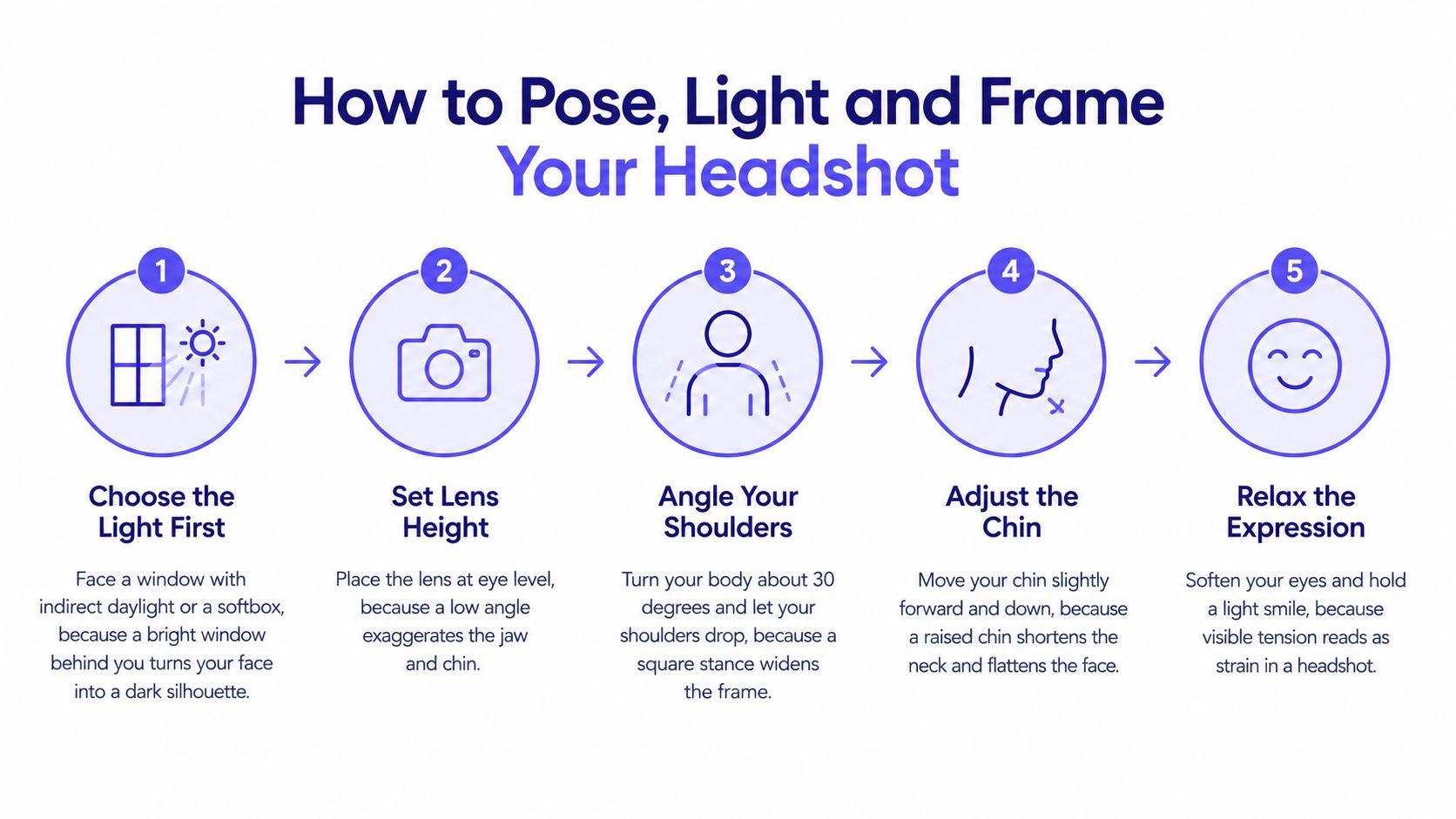
Good results come from coordinating pose, illumination, and focus, not from adding blur after the fact. Face-image quality guidance from NIST's face-image quality specification emphasizes a near-frontal pose, balanced lighting, and the absence of capture artifacts. Work through the setup in order:
Choose the light first. Face a window with indirect daylight, or use a softbox, so light reaches both sides of your face. Don't put a bright window behind you, because the camera may expose for the window and leave your face too dark.
Set the camera at eye level. Put the lens near nose height and point it straight at you. A low or high angle changes facial proportions and can make the jaw or forehead look more prominent than it does in person.
Turn your torso slightly. Keep your face nearly frontal, relax your shoulders, and lean just a little toward the camera. That gives the pose some shape without hiding an eye or changing your recognizable facial proportions.
Check the light on your face. Move yourself or the light until both eyes and cheeks retain detail. If one eye socket is much darker than the other, shift toward the window or soften the light with a sheer curtain or a reflector.
Focus on the nearer eye. On a phone, tap the eye on the screen and hold still as the camera focuses. On a dedicated camera, use eye-detect autofocus or place the focus point on that eye.
Take several expression options. Shoot a relaxed closed-mouth expression, a natural slight smile, and a few frames with your chin a touch lower. Small differences in expression often matter more than a longer series of near-identical poses.
Review each frame at full size. Check that the eyes are sharp, hair and jaw edges are intact, and highlights on your forehead aren't washed out. Don't choose a frame just because it looks flattering as a tiny thumbnail.
What to watch while shooting
A bare bulb or direct sun can create hard shadows under the eyes and nose. A large diffused source, such as a shaded window or bounced light, is easier to manage because it spreads illumination across the face. If a side window makes one cheek much brighter than the other, turn more squarely toward it or move farther away to soften the contrast.
Practical rule: If you can't see detail in both eyes on the phone screen, adjust the light before taking more frames.
Underexposure can make phone images noisy, while clipped highlights erase texture on the forehead or cheeks. Artificial portrait blur can also cut away fine hair or blur the jawline. Keep the background simple and let the lens, rather than a heavy blur effect, separate you from it. For more on managing light and composition in a camera setup, see this guide to fashion photography for beginners.
Adjusting the Pose for Mobility, Expression and Dress
Conventional posing cues assume a body and temperament that many people don't have. "Smile naturally" fails someone whose facial muscles work differently, and "turn slightly" fails someone whose chair doesn't swivel. Conventional cues don't suit people with motor impairments, neurodivergent people, or people with facial differences, so adapt the pose to the person in front of you rather than running the same script on everyone.
The fix is concrete, doable instructions: "let your shoulders drop," "rest your hands in your lap," or "turn your chair toward the light." One cue at a time lets the subject find a comfortable position without having to imitate a mood or perform a particular movement.
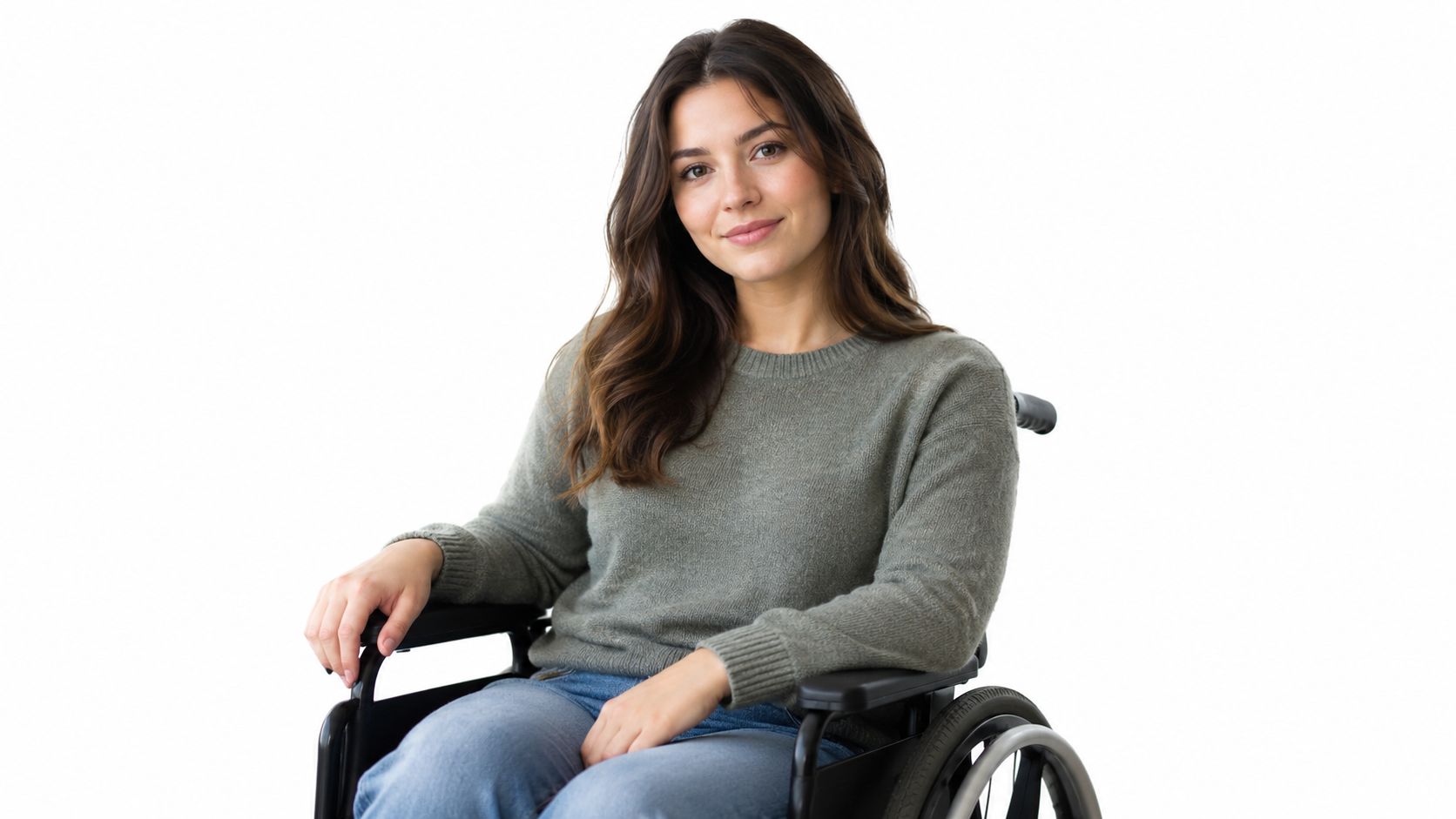
For a seated portrait, use a chair with its back either clearly visible or fully outside the crop. Set the camera around chest height while seated and frame from the chest up. A wheelchair, crutches, or another mobility aid can remain in the image when it's part of how the person works or wants to be represented. Crop it out only when the intended image is specifically a face-only portrait.
Expression deserves the same flexibility. A neutral, closed-mouth expression is a valid professional choice. Eye contact with the lens is optional if it feels uncomfortable; a natural gaze the person is happy to use on a work profile reads better than a forced stare. Agree on these choices before the shutter clicks, not after.
Religious head coverings, visible medical devices, and culturally specific dress belong in the image when the person wants them there. Frame and light the portrait as it will appear on a work profile, then check that the result looks like the person in real life. Editing should never erase a feature or device just because it departs from a narrow idea of a "standard" headshot.
Plan the session with a short checklist:
- Seated option ready: Choose a chair or supported position in advance.
- Cues prepared: Give one actionable verbal instruction at a time.
- Neutral expression allowed: Don't require a smile.
- Aid visibility decided: Agree on the framing before the shoot.
- Crops reviewed: Check at least two platform crops, keeping the same person without body or facial changes.
Basic Edits That Keep You Recognizable
Start every edit with one question: Would a colleague recognize this person immediately in ordinary light? More retouching doesn't automatically make a stronger headshot. A polished image can still mislead if it changes the face, apparent age, hairline, or body shape.
That boundary matters in professional settings. A Kelly Services article on workplace beauty standards cites a survey in which 53% of hiring managers said physical features affect hiring decisions. It also describes a trust gap around AI portraits: in blind testing, 76.5% preferred AI-generated headshots, while 66% said they'd be put off after learning the image was AI-generated. The figures make authenticity a practical concern, not just a personal preference.
Work in this order:
- Correct exposure, white balance, and contrast across the whole image.
- Straighten the image and crop it for its intended use.
- Remove small distractions, such as dust, a stray hair, or a reflection.
- Check skin at full size, keeping pores and natural lines.
- Compare the edited image with the original, and reject changes to your jaw, nose, eyes, age, hairline, or body shape.
| Edit | Verdict | Limit |
|---|---|---|
| Exposure, contrast, and white balance | Safe | Keep skin tones close to real life |
| Crop and straighten | Safe | Keep the intended profile framing |
| Background cleanup or softening | Safe | Don't imply a different job or location |
| Dust, stray hairs, and small distractions | Safe in small amounts | Stop before the look becomes plastic |
| Blemish reduction | Use with care | Keep skin texture and natural lines |
| Teeth whitening | Use with care | Keep the tone close to the natural colour |
| Smoothing or beauty filters | Avoid | They can erase texture that helps the face look familiar |
| Jaw, nose, eye, or body reshaping | Identity-changing, avoid | It changes the person a colleague would recognize |
| Age, hair colour, or hairline changes | Identity-changing, avoid | Disclose the change or reshoot instead |
Disclosure is prudent after AI generation or any edit that changes identity-relevant features. It's usually optional when you've only adjusted exposure or crop. If you're deciding how much correction to make, use this guide to professional headshot recommendations, then compare the final file side by side with the original.
Export Sizes and Crops for Each Profile
A recognizable crop gives the face room to remain clear when a platform turns the image into a small avatar. Passport-photo standards commonly place the head at roughly 70–80% of the image's height, a proportion that can also help a professional portrait read clearly at small sizes. The principle is simple: keep the face large enough to identify, but leave space above the hair and below the chin so different layouts don't cut it off. Passport photo standards and the move to biometric documents
Use a square crop for circular avatars and centre the face so the circle doesn't clip the hair or chin. For a speaker bio or media kit, a vertical 4:5 portrait leaves more room for text or layout adjustments. Save a full-resolution master before you compress or resize the file.
| Use | Format and size | Crop note |
|---|---|---|
| LinkedIn profile photo | JPG or PNG, square, at least 1000 × 1000 px | Shown as a circle, keep the face centred |
| Instagram profile photo | JPG or PNG, square, at least 1000 × 1000 px | Shown as a small circle, keep the face large |
| Company team page | JPG or PNG, square or site dimensions | Check the site's own specification |
| Speaker or media kit | JPG or PNG, 4:5 portrait, at least 1000 px on the short side | Leave room for the layout crop |
| Email signature | JPG or PNG, about 300 × 300 px | Keep the file light so it loads quickly |
When the destination gives you a display size, export at about twice that size so the image stays sharp on high-density screens. For platform-specific guidance, review these headshot image specifications and follow the destination's current upload requirements.
Two export mistakes spoil otherwise good work: aggressive compression makes skin look blocky, while heavy sharpening creates bright halos around the hair and jaw. Check the final file at the size it'll actually appear, not only on a large editing screen.
Choose and Publish Your Final Headshot
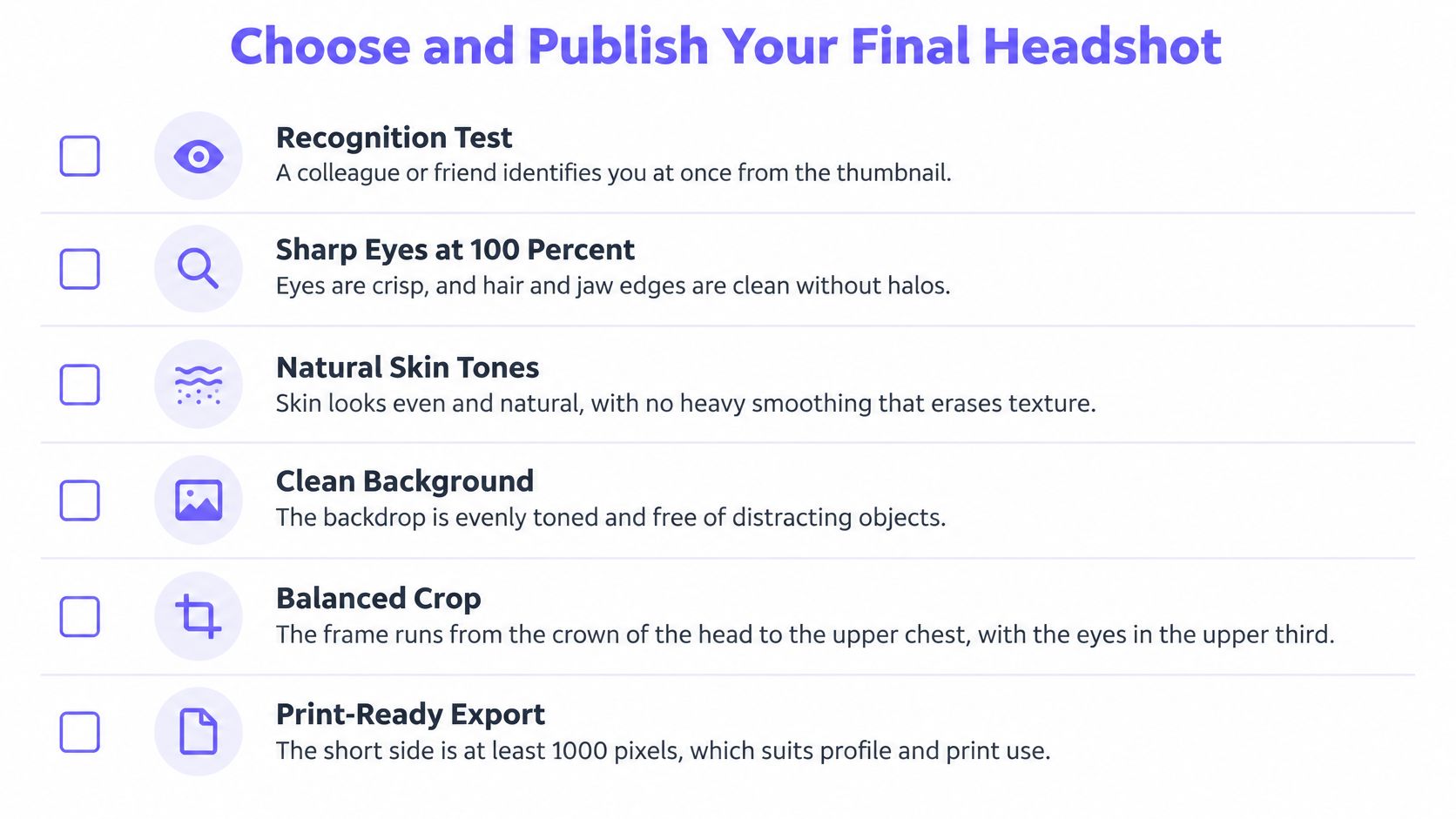
Pick a frame only if it passes every item on this checklist:
- Recognition: A colleague or friend identifies you at once from the thumbnail.
- Sharpness: The eyes are crisp at full size, with clean hair and jaw edges.
- Expression: You look like someone you'd be comfortable meeting in person.
- Light: Both eyes are visible, with no dark eye sockets or blown forehead.
- Crop: The framing suits the destination where you'll publish it.
- Authenticity: No identity-changing edits are present, and you've decided whether to disclose AI generation.
If no frame passes, reshoot under the same light before adding stronger edits. Retouching can remove a small distraction, but it can't reliably fix an out-of-focus eye, an unflattering camera angle, or a face lost in shadow. The strongest choice is the one that looks like you, not the one that looks most heavily processed.
If you've only got everyday photos to start with, Vtry AI's Professional Headshots creates clean, studio-style portraits from those images. You can use quick adjustments for brightness, contrast, colour, rotation, and flipping, or give a text-based edit one explicit instruction. Compare the result with the original and apply the same recognition test before publishing.
Vtry AI offers studio-style professional headshots from everyday photos, plus quick adjustments and text-based editing for targeted changes. Create a portrait, check it against the same recognizability standard, and visit Vtry AI to get started.